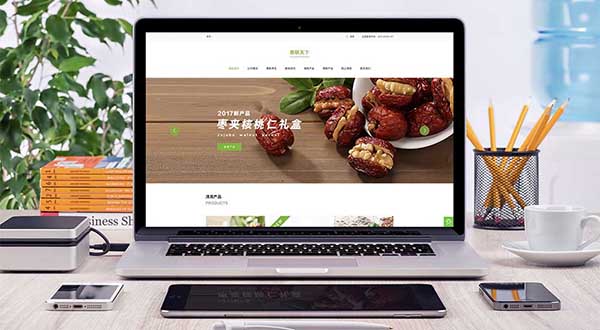
For an impressive website interface, an “engaging experience” never means popups flying across the screen and awkward special effects. It means every mouse movement, tab click, and parameter selection receives an appropriate, smooth, natural response from the interface, making the process of exploring information feel reassuring and enjoyable.
In our corporate website and UI/UX upgrade projects, we use the following 10 practical steps to systematically improve interface experiences:
1. Five steps for information architecture and reading rhythm
- Replace vague slogan posters with a “first screen readable in 3 seconds”: Ensure that visitors can immediately see “the core business positioning + real product/service visuals + clear primary and secondary action buttons” without scrolling.
- Create rhythmic visual anchors for “F-pattern / Z-pattern” scanning: Use clear contrasts in font weight (such as
Boldheadings with neutral gray body text), numbered pills (01 / 02 / 03), and highlighted key metrics to help visitors accustomed to scanning quickly grasp the main point of each section effortlessly. - Use progressive disclosure to make pages feel less overwhelming: Present complex technical specifications, 12 questions and answers about working together, or years of company history in accordions or step-based tabs. Keep the first screen clean and reveal deeper details on click.
- Turn dry text descriptions into “interactive comparison components”: For example, use a draggable Before/After slider to show a website before and after redesign; use a dynamic comparison table with monthly/annual billing toggles or selectable requirements to present multiple plan tiers.
- Maintain ample macro-whitespace: Leave
80px–120pxof breathing room between major business sections (48px–64pxon mobile), so content does not fill every edge of the screen like newspaper classified ads.
2. Five steps for interaction feedback and perceived performance
- Design subtle hover and press micro-interactions for every clickable element: When users hover over buttons, portfolio cards, or navigation links, provide gentle movement, an elevated shadow, or a slight arrow shift to clearly communicate “you can interact here.”
- Replace dull loading spinners with skeleton screens: When filtering a portfolio list or loading data asynchronously, first show a light gray, gently pulsing skeleton that matches the target card structure, reducing perceived waiting time by more than 30%.
- Design warm, helpful empty states and 404 pages with clear routes onward: When filters return no results or users follow an old link, provide a clear explanation along with “Reset filters” or “Popular solutions” links. Never leave users at a dead end.
- Provide immediate positive inline validation for forms: Show a small green checkmark as soon as users enter a valid email address or phone number. For errors, gently explain exactly how to fix them and retain an automatically saved draft.
- Respect the system's reduced-motion setting (
prefers-reduced-motion): Detect the user's operating system accessibility preference in CSS, and automatically replace large movement animations with gentle opacity transitions for users who enable the setting to reduce motion-induced dizziness.