Many startup teams spend hundreds of thousands of yuan on promotion to drive app-store downloads, only to feel their hearts sink when they look at the funnel data: out of 100 users who download and install the app on their phones and tap its icon, 35 close and uninstall it right at the first “Register / Log In” screen, without ever seeing what the product’s home screen looks like!
Why does this happen? Because many teams are still stuck in habits from ten years ago. Users have only just opened the app and have not yet determined whether it is useful or trustworthy, but you put up a cold “login wall,” forcing them to enter a phone number, complete a sliding jigsaw verification, receive an SMS verification code, set an “8–16-character password containing uppercase and lowercase letters and special symbols,” and check three lengthy agreements before letting them in. In today’s mobile internet environment, where patience lasts only 3 seconds, this cumbersome interrogation shuts out one-third of new users.
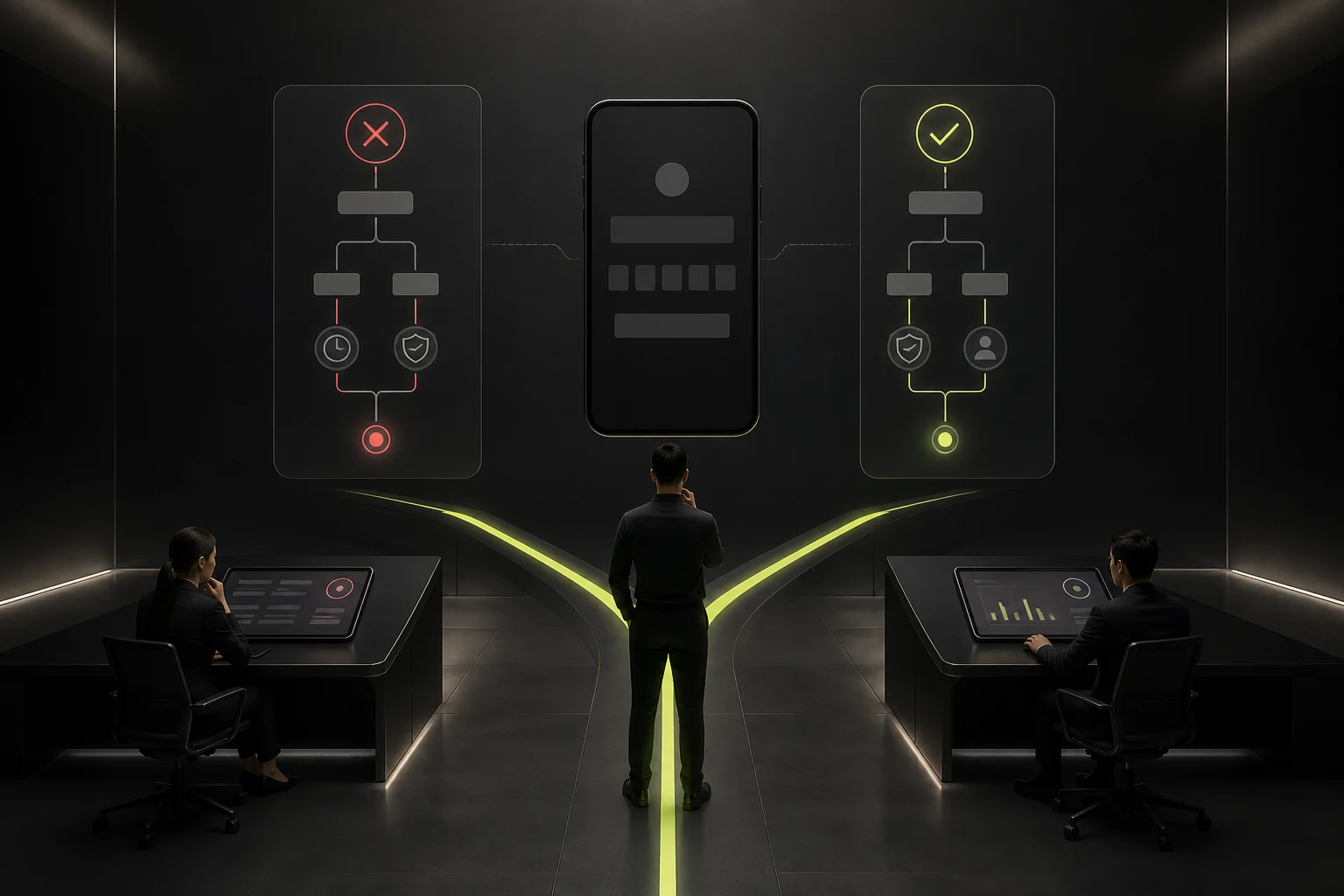
In JVDS’s mobile product experience standards, good login and registration design is summed up in eight Chinese characters: “Ask later; enter with one tap”.
1. For Products That Can Offer “Guest Mode—Browse First, Log In Later,” Never Block Users in the First Second
Unless your product is a completely private bank account or an encrypted internal corporate messenger, where there truly is no public content to view without logging in, prioritize “lazy registration”—whether you offer e-commerce, a content community, travel guides, a design tool, or a course platform:

- When users first open the app, let them enter the actual content feed or tool canvas immediately. Allow them to find an interesting product, try a photo-editing filter once, or watch the first 3 minutes of a free trial lesson;
- Only when users actively tap “Save to Favorites,” “Add to Cart,” “Post a Comment,” “Save Work to the Cloud,” or “Place Order and Pay” should a half-screen login panel, or bottom sheet, slide gracefully up from the bottom. By then, they have already invested effort and know exactly what logging in will give them. Registration conversion is typically at least 40% higher than when users face a hard block on the first screen.
2. Make “Account and Password Entry” Secondary, and Prioritize “One-Tap Login with This Phone’s Number” and Platform Authorization
Typing a password on a small phone screen, then switching to the SMS inbox to read a 6-digit verification code, is an inherently error-prone chore:

- Mobile apps for the Chinese market: the primary button must integrate “one-tap login with this phone’s number” through the gateways of China’s three major carriers. Users only need to check the agreement and tap once to complete authentication within 1 second, improving the success rate by at least 25% over SMS verification. Below it, offer “One-Tap WeChat Login” and “Log In with an SMS Code for Another Phone Number” as secondary options.
- Apps targeting overseas markets: prioritize Sign in with Apple (mandatory for iOS App Store listing) and Continue with Google, as well as entering an email address to receive a magic link or a 6-digit one-time code (passwordless OTP). Phase out traditional registration with static passwords that are easily forgotten wherever possible.
3. 4 Microinteraction Details That Show Real Login Design Skill and Prevent Drop-Off
- Combine “Register” and “Log In” into one entry point: do not make users decide, “Am I an existing user who should log in, or a new user who should register?” Use one unified option: “One-Tap Login with Phone Number / Email (an account will be created automatically after verification if the number is not registered),” eliminating unnecessary page transitions.
- Autofocus and one-tap pasting for verification codes: when the user reaches the 6-digit verification-code screen, automatically open the numeric keyboard (
inputmode="numeric") and support reading an SMS code from the system clipboard to fill it with one tap. After the 6th digit is entered, automatically trigger verification and navigate onward, without making the user reach for a “Confirm” button again. - Gentle guidance when the privacy agreement is unchecked: if users forget to check “User Agreement and Privacy Policy” at the bottom and tap the login button directly, do not simply show a harsh red error saying “Please check the agreement first” and require two more taps. Instead, display a lightweight confirmation dialog: “By logging in, you agree to the User Agreement and Privacy Policy. Tap [Agree and Continue] to log in now,” helping users complete agreement confirmation as part of the flow.