When discussing accessibility (a11y) in websites and digital products, many teams stop at checking whether text and background colors reach a 4.5:1 contrast ratio or adding alt attributes to images. Yet passing a minimum contrast test does not mean users can complete their tasks smoothly.
In real business situations, even people without any visual impairment can face substantial cognitive barriers when multitasking, browsing hurriedly on a phone, or working in an unfamiliar specialist field such as healthcare, finance and tax, or government administration. The cognitively accessible principles proposed by the W3C Cognitive and Learning Disabilities Accessibility Task Force (COGA) are a foundation of high-conversion UI/UX Product Design.

1. Reduce unnecessary short-term memory demands (Recognition Rather Than Recall)
- Keep context available across steps: In multi-step booking, quotation, or complex configuration processes, do not make users at step 3 remember the parameters they chose at step 1. Keep a summary card of their selections visible in the sidebar or at the top, with access to review choices and return directly to an earlier step to edit them.
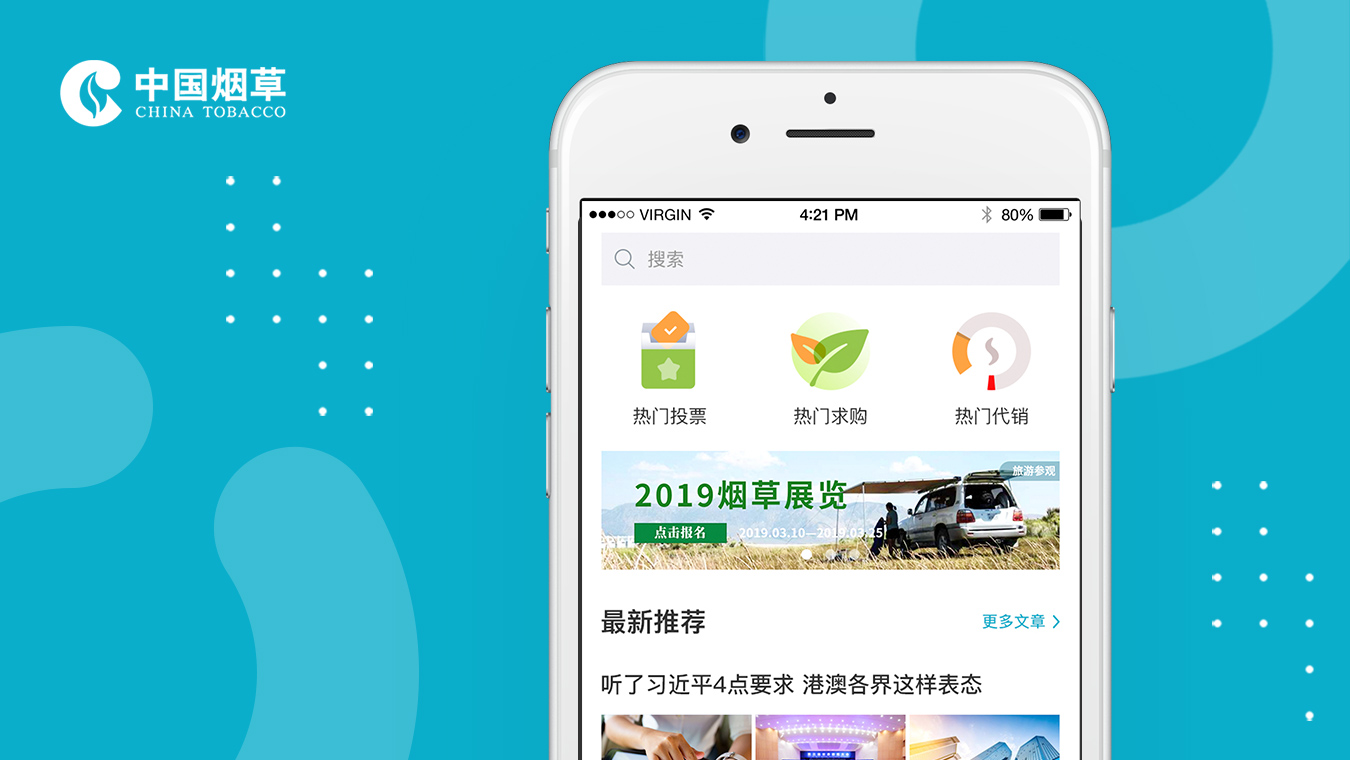
- Avoid icon-only navigation without text: Apart from a very small set of globally familiar symbols, such as a magnifying glass for search or a shopping cart, navigation and action buttons in business systems and professional tools should pair icons with clear verb labels. Users should not have to guess what abstract geometric shapes mean.

2. Maintain a stable visual structure and predictable interaction feedback
- Give each component one consistent behavior throughout the site: Do not make a card open a modal on the homepage while an identical card on the portfolio list opens a new browser tab. Consistent interaction patterns significantly reduce the learning burden.
- Replace dense blocks of text with a clear hierarchy: Break paragraphs longer than 4 lines into a bold key conclusion, 3–5 bullet points, and highlighted data. Visitors who scan rather than read every word can then find the essential information within 5 seconds.

3. Prevent form mistakes and provide supportive error recovery
Failed form submissions are among the places where cognitive friction most readily causes lost conversions:
- Never clear completed fields when an error occurs: One of the most frustrating practices on poorly built websites is refreshing the page after an incorrect CAPTCHA or a single formatting error, wiping out the 200-character requirements description the user has just typed.
- Explain the specific cause and show how to correct it: Instead of an unhelpful red message such as “Invalid input format,” place a clear instruction below the relevant field: “Enter an 11-digit mobile number without hyphens or spaces.” Keep an automatic draft-saving mechanism so recovering from an error does not become a frustrating experience.