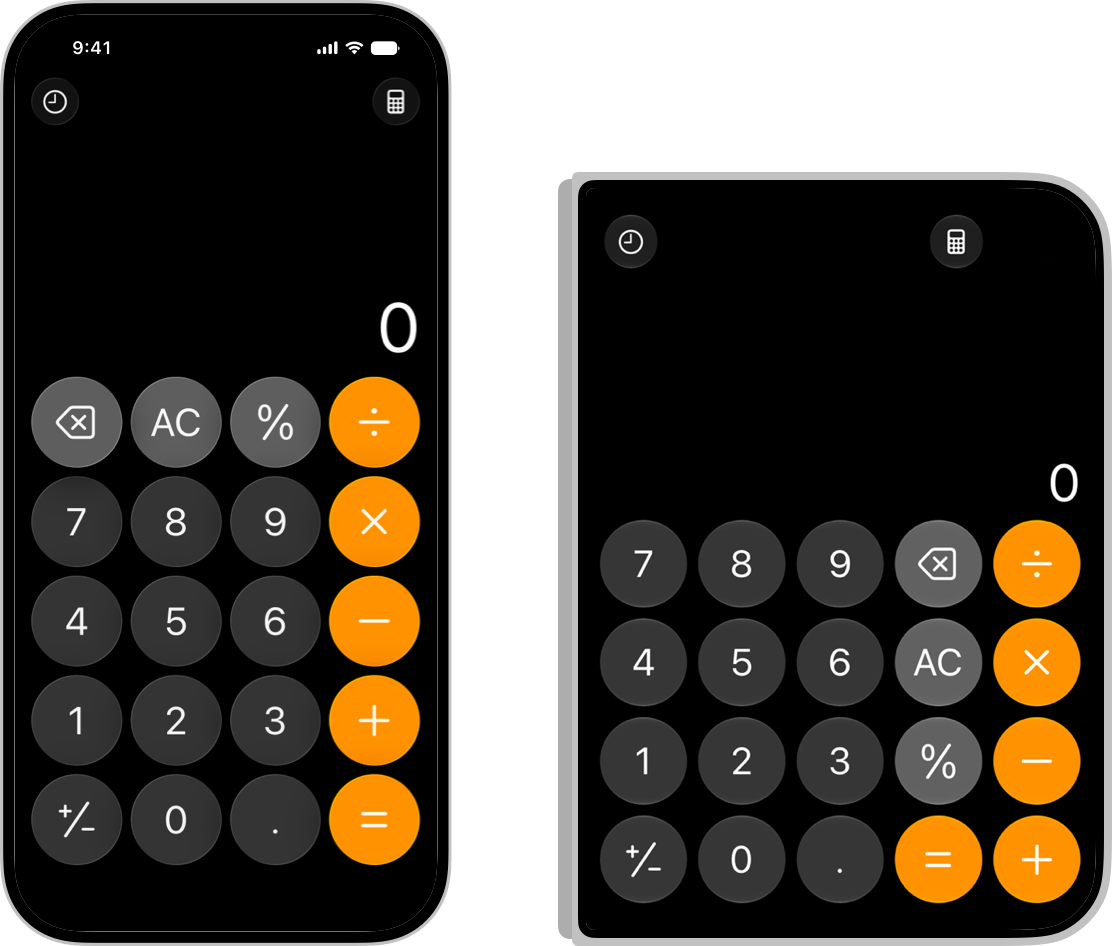
As foldable phones and dual-screen mobile devices—including large book-style foldables, compact clamshell foldables, and concept dual-screen devices—become more common among premium business users, enterprise apps and consumer apps for high-value purchases frequently encounter a usability problem: when users unfold their phones into a roughly square, tablet-like aspect ratio, such as 4:3.5 or 1:1, an interface originally designed for a tall, narrow phone screen at 20:9 is simply stretched sideways. One image fills the entire screen, a line of text runs to 50 or 60 Chinese characters, or huge black bars are left on either side.

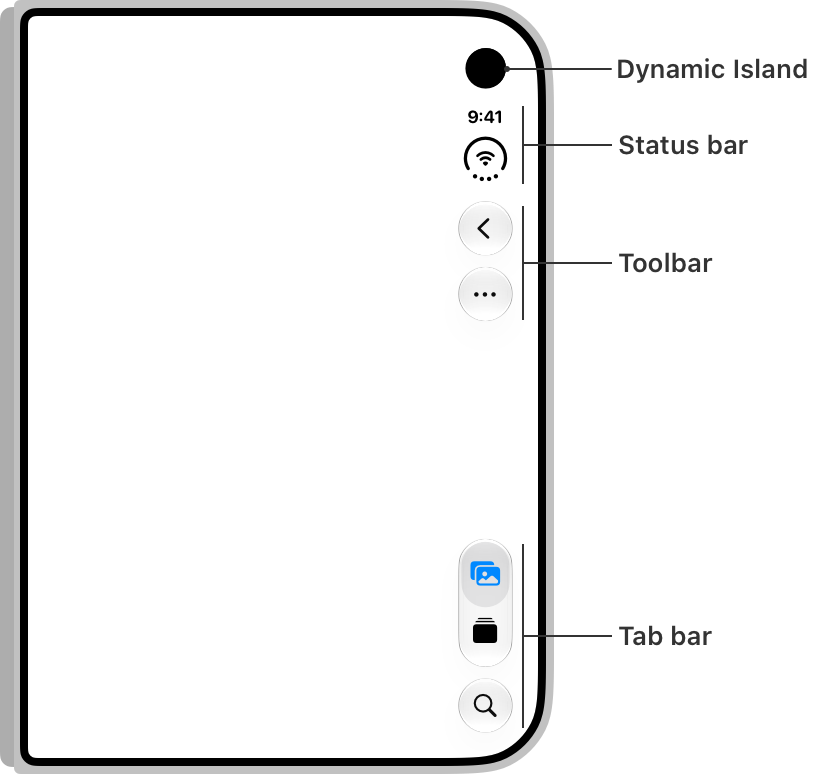
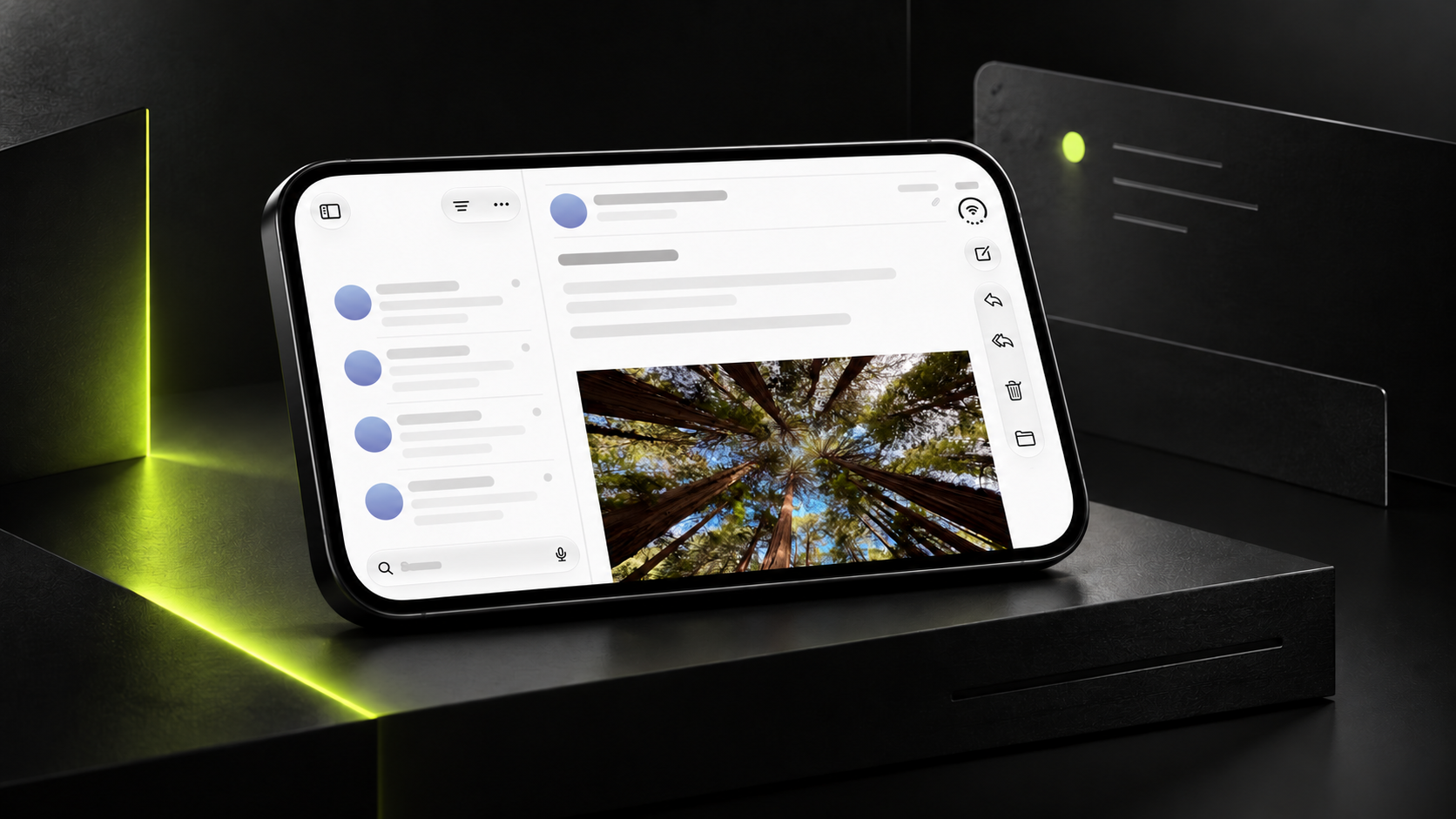
Proper UI/UX adaptation for foldables is far more than having designers mechanically draw a few additional static screen sizes in Figma. It requires redesigning app continuity and the division of multitasking across the available space.
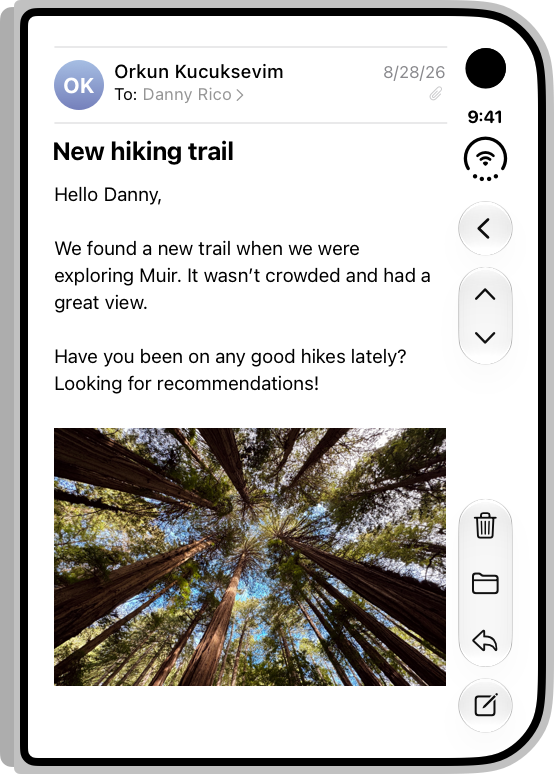
1. The Core Value of the Unfolded State: From Page Navigation to a Coordinated List–Detail View on One Screen
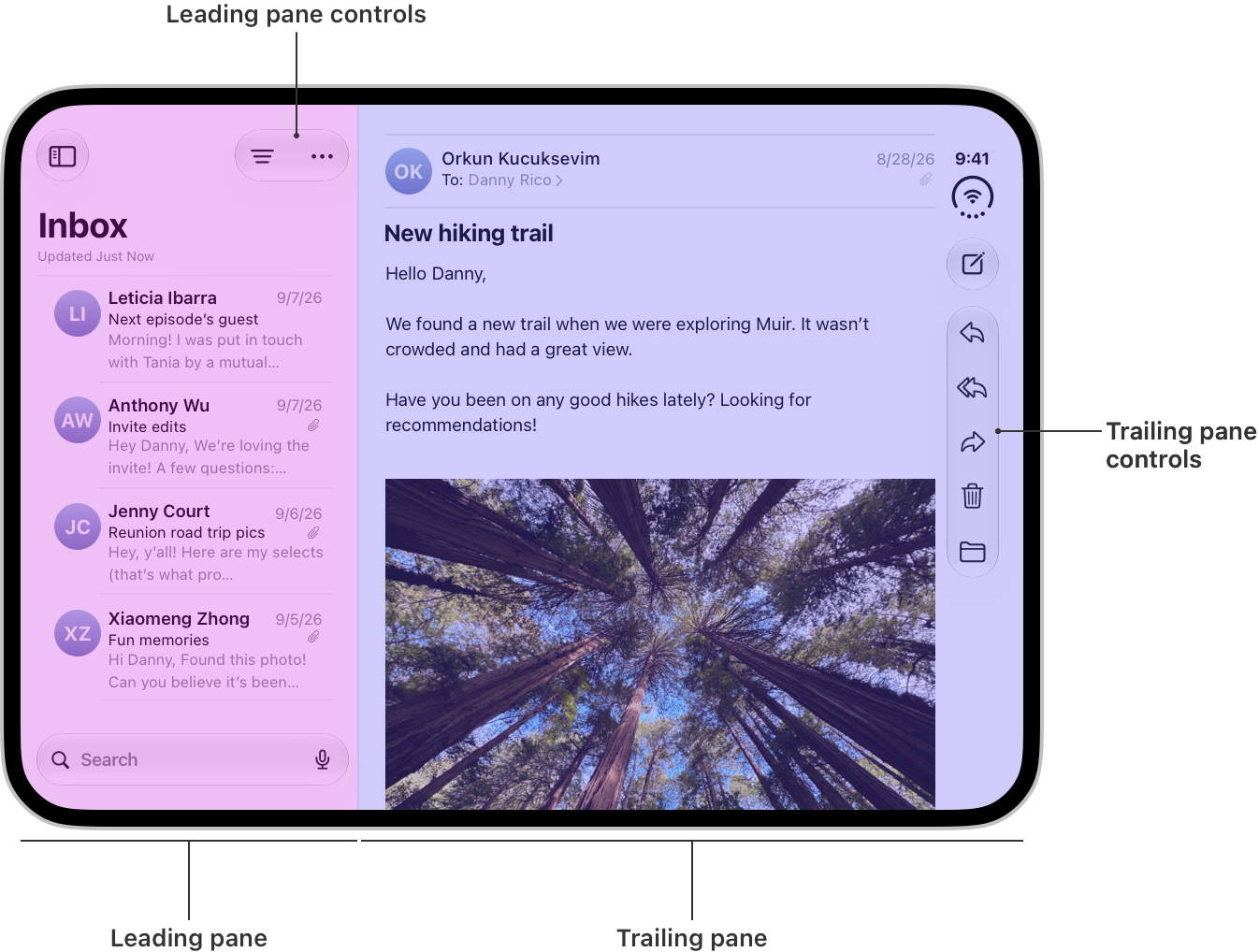
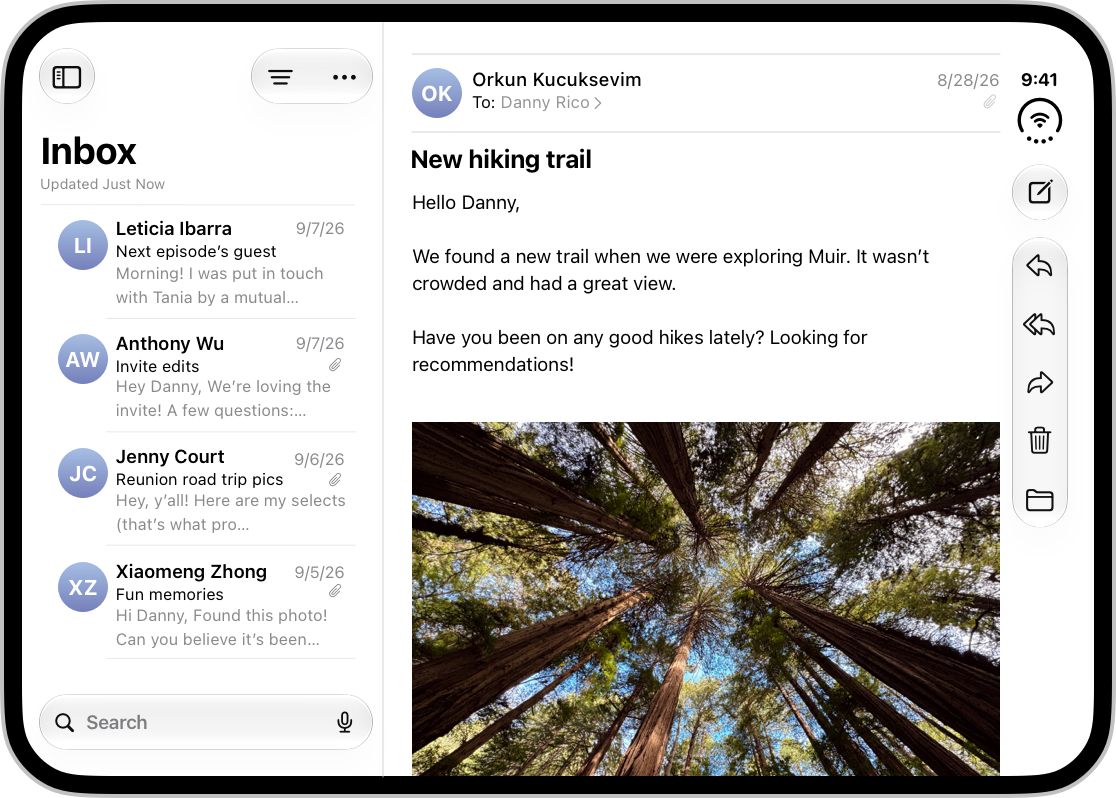
On a conventional single-screen phone, users browsing email, chat histories, product catalogs, or corporate approval workflows must repeatedly move forward and back between list and detail pages. On an unfolded device, UI/UX product design should use the doubled horizontal space to restructure the information flow:
- Reserve the left 40% of the width for navigation and the main list (Master Pane), while the right 60% displays the currently selected item's details, charts, or editing workspace in real time (Detail Pane).
- Drag and drop and compare across screens: In e-commerce product selection, scheduling, or document processing, allow users to browse an asset library on the left while dragging or placing items directly onto a canvas on the right, realizing the larger screen's productivity advantages.
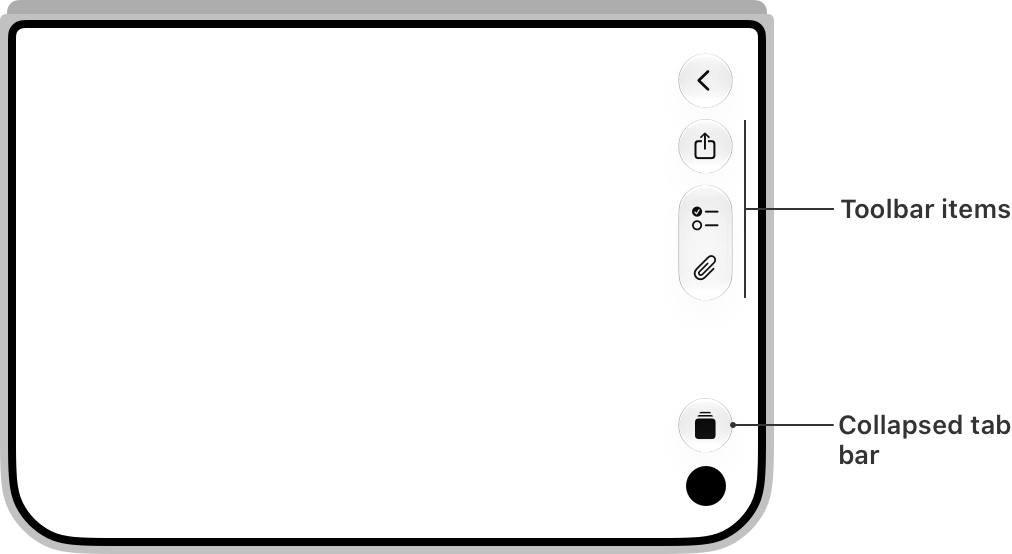
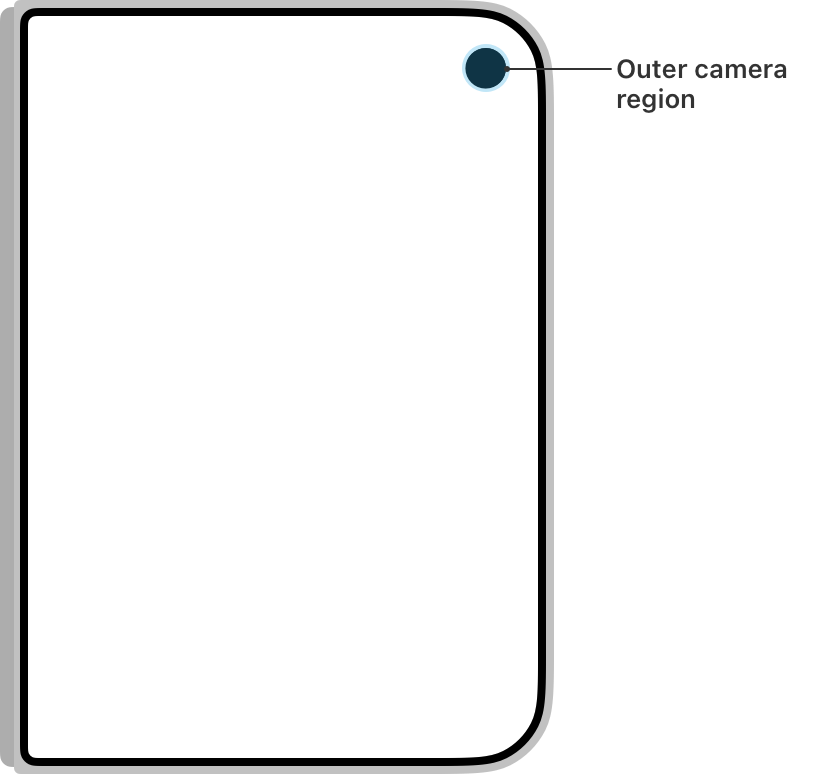
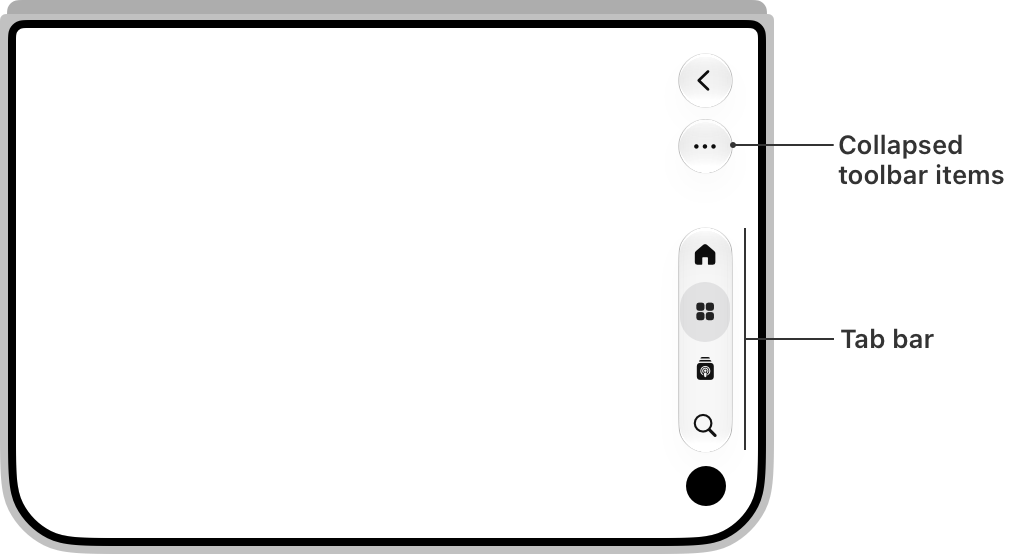
2. Interaction Principles for Avoiding the Physical Crease and Hinge Area
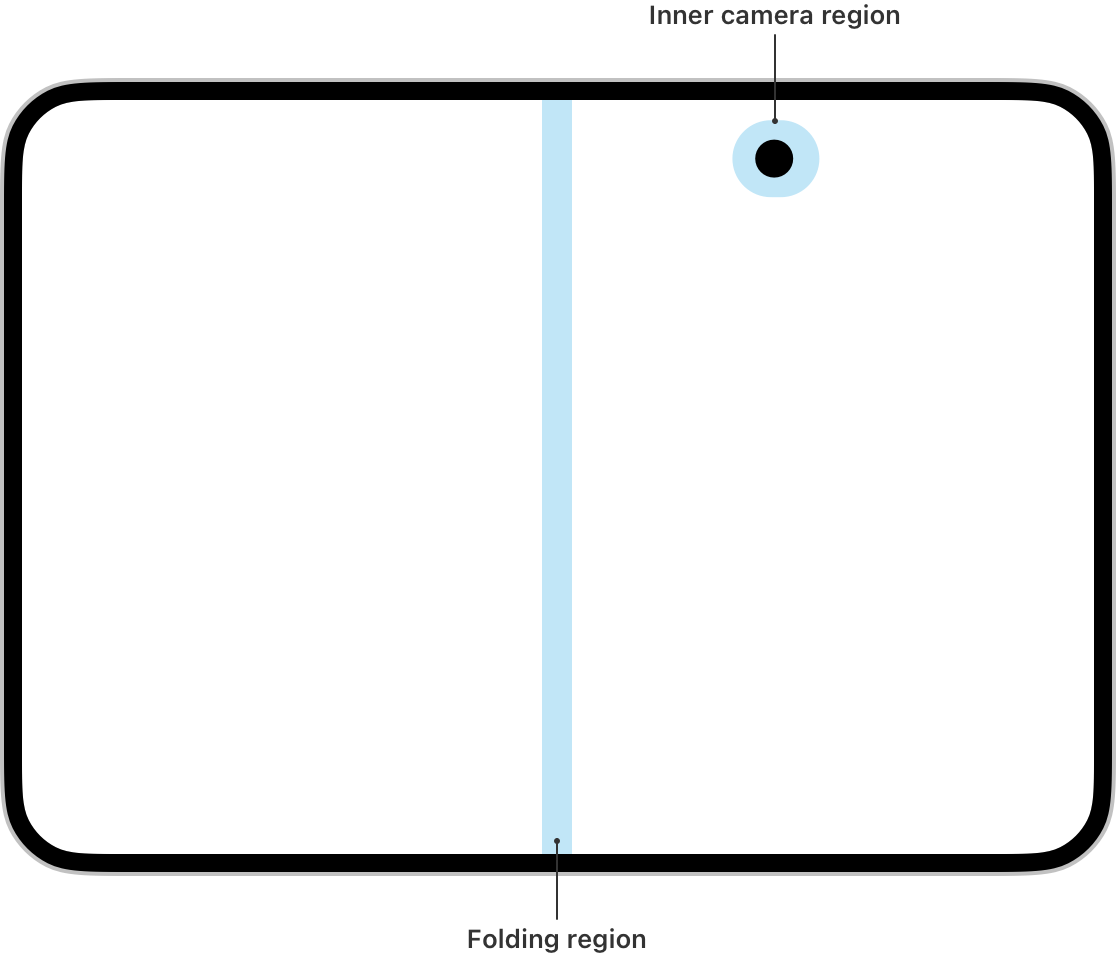
- Never center key action buttons across the crease: If a primary confirmation button or horizontal slider straddles the center crease, it may appear slightly distorted, and the crease's groove can also interfere with tapping and swiping. In the unfolded state, distribute the bottom action bar toward the thumb-friendly zones on either side—the lower-left and lower-right corners when held with both hands.
- Zero state loss when switching between folded and unfolded modes: If users are filling in a form or watching a video on the outer screen and unfold the inner screen partway through, the app must seamlessly preserve their current scroll position, entered form text, and playback progress. A viewport reconfiguration must never trigger a forced page refresh that resets the state.