NEXA connects website and app through silver motorcycles, dark backgrounds and fluorescent green. Smart vehicle app design can retain distinctive branding while distinguishing product browsing from device management. Websites explain products; apps need current identity, data meanings and operation results. These roles matter more than matching appearances.
The website presents products before two next steps
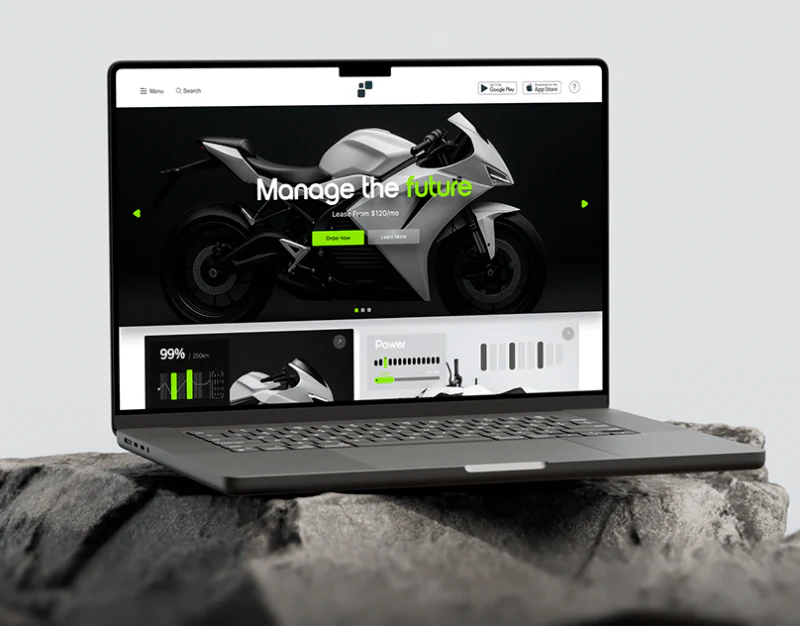
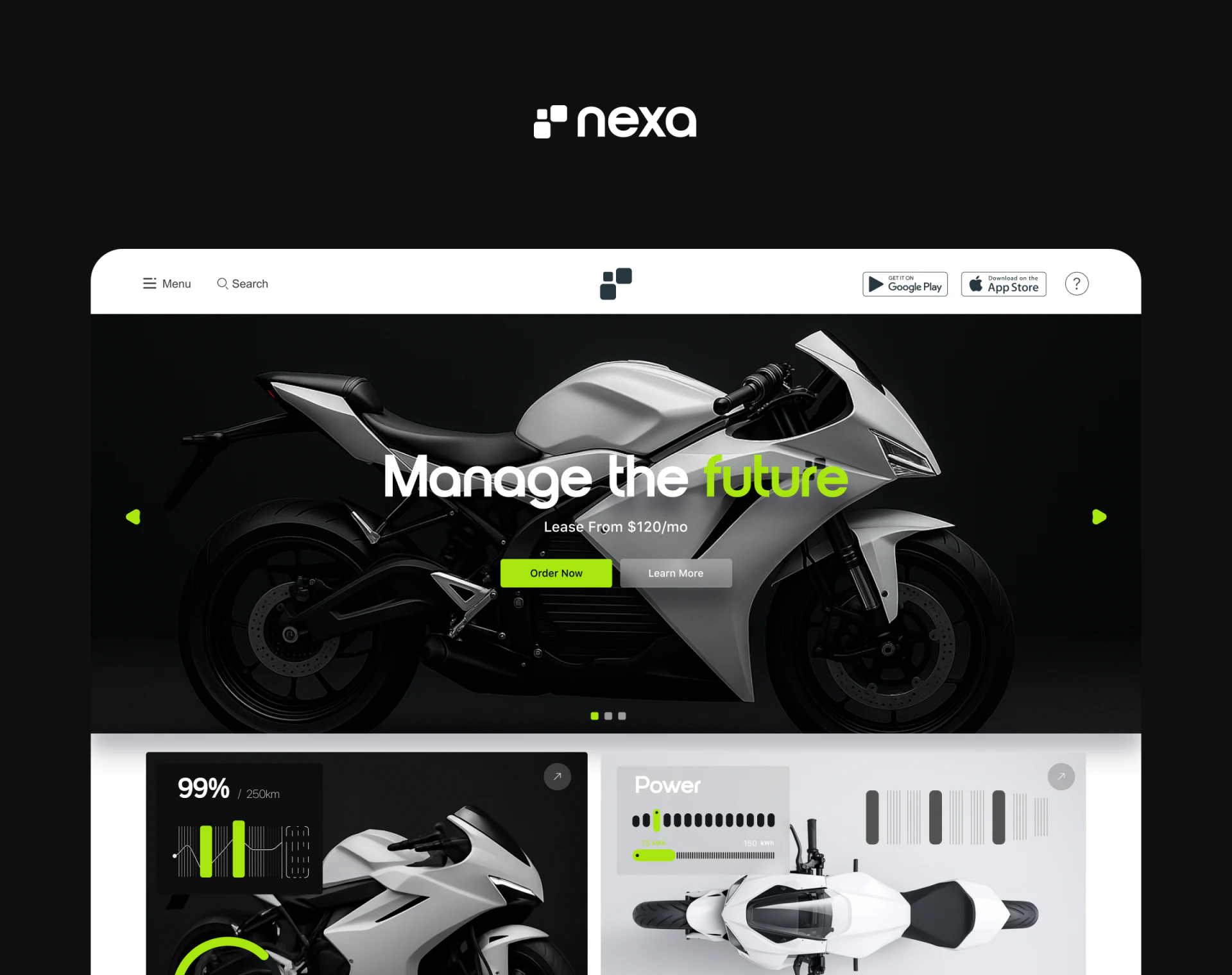
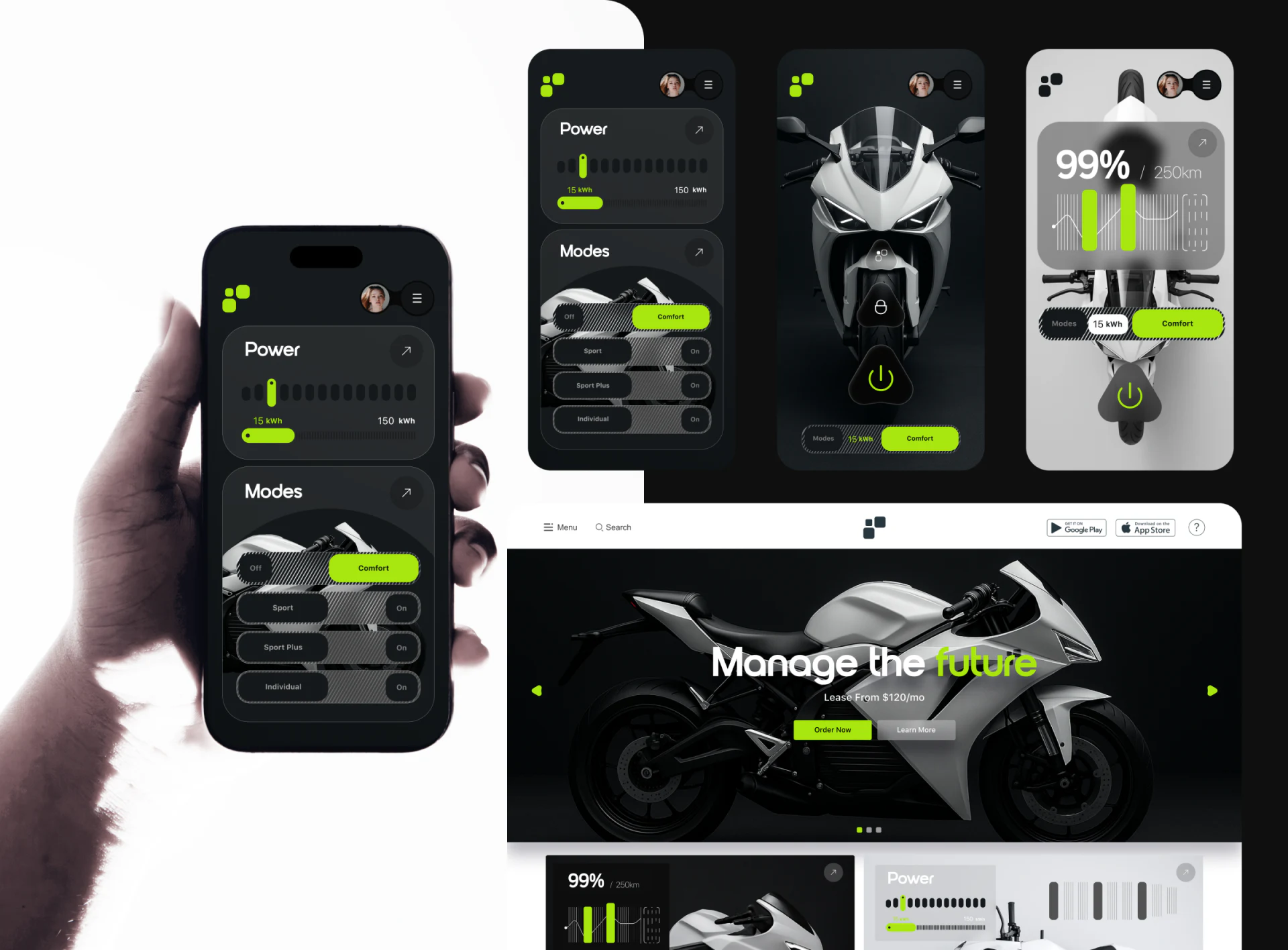
A side-view vehicle fills the hero, with Manage the future crossing its body. future and Order Now are fluorescent green, while Learn More is gray. Menu, search and shop remain above, with arrows beside the image and dots below for several showcase items. Large vehicle form and central words and actions establish a clear impression.
Learning and ordering serve visitors with different readiness. Later pages can separately explain capabilities, leasing conditions and ordering, retaining the showcased model’s identity. Battery and mode graphics below suit capability promotion but need distinction from a person’s live device state.
Mode cards first need selection rules
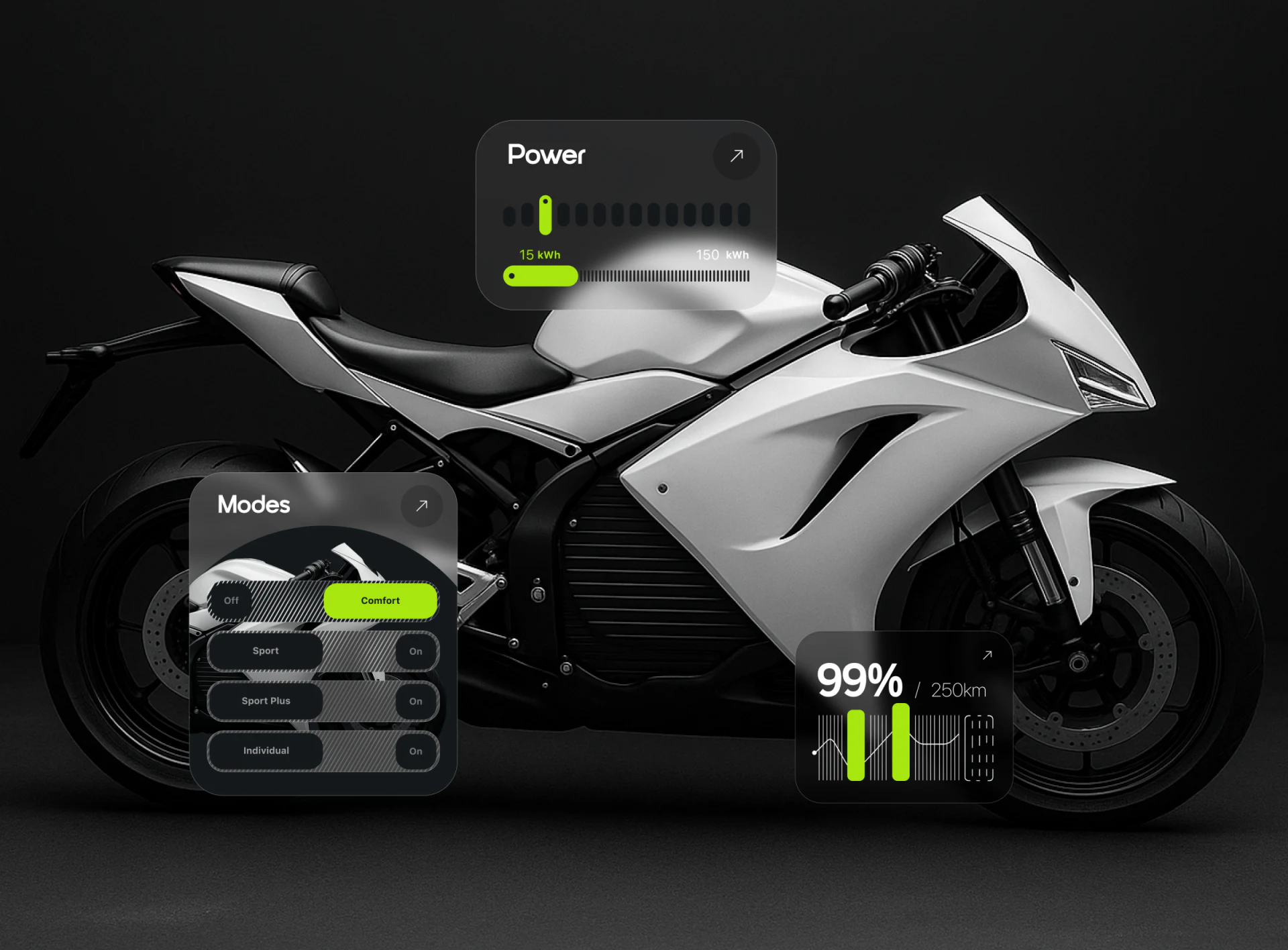
Modes lists Comfort, Sport, Sport Plus and Individual, highlighting Comfort green. Off appears at the first row’s left and On at the other rows’ right. Names provide direct comparison, while current state, selectable state and actions lack explicit correspondence.
If modes are mutually exclusive, name the current one and make others selection actions; if independent toggles, explain each control. JVDS favors defining equipment rules before highlight and toggle styles, distinguishing row selection from confirmed device activation.
Power values 15 kWh and 150 kWh, and another card’s 99% and 250 km, need metric names and update times. Bars and curves show change, while objects and units establish meaning rather than leaving definitions to graphics.
Controls on vehicle images retain objects and results
Mobile presents a data list, front view and overhead view on separate phones, with lock and power icons beside the body and Comfort and readings retained below. Views make the control object intuitive, while simple icons leave its form visible.
Switching views should retain device name, connection and last update, especially for multi-vehicle accounts. Power icons need function and available conditions, with separate text for executing, complete or unconfirmed results. Green should not imply an already changed device before confirmation.
Green also marks branding, modes, data and controls, so positions and labels distinguish duties. The valuable consistency makes one vehicle, mode and operation traceable across views rather than merely repeating color.
Create clear device-management state paths
If your smart device product connects website presentation, states and controls, align identity, metric definitions and execution feedback before arranging brand visuals.
JVDS provides UI/UX design and website design and development, helping plan device apps, control states and product showcases.