Unlike financial apps for individual consumers, an enterprise payment operations dashboard serves finance specialists and treasury managers who handle hundreds of supplier payments, cross-border foreign exchange settlements, refund reviews, and investigations into risk-control exceptions every day. For these dense enterprise systems, such as the NEXIVA enterprise finance collaboration platform we serve, the primary measure of UI/UX quality is not how attractive the illustrations are, but how many mouse clicks it takes to process 50 transactions awaiting approval, and whether users might click the wrong thing.
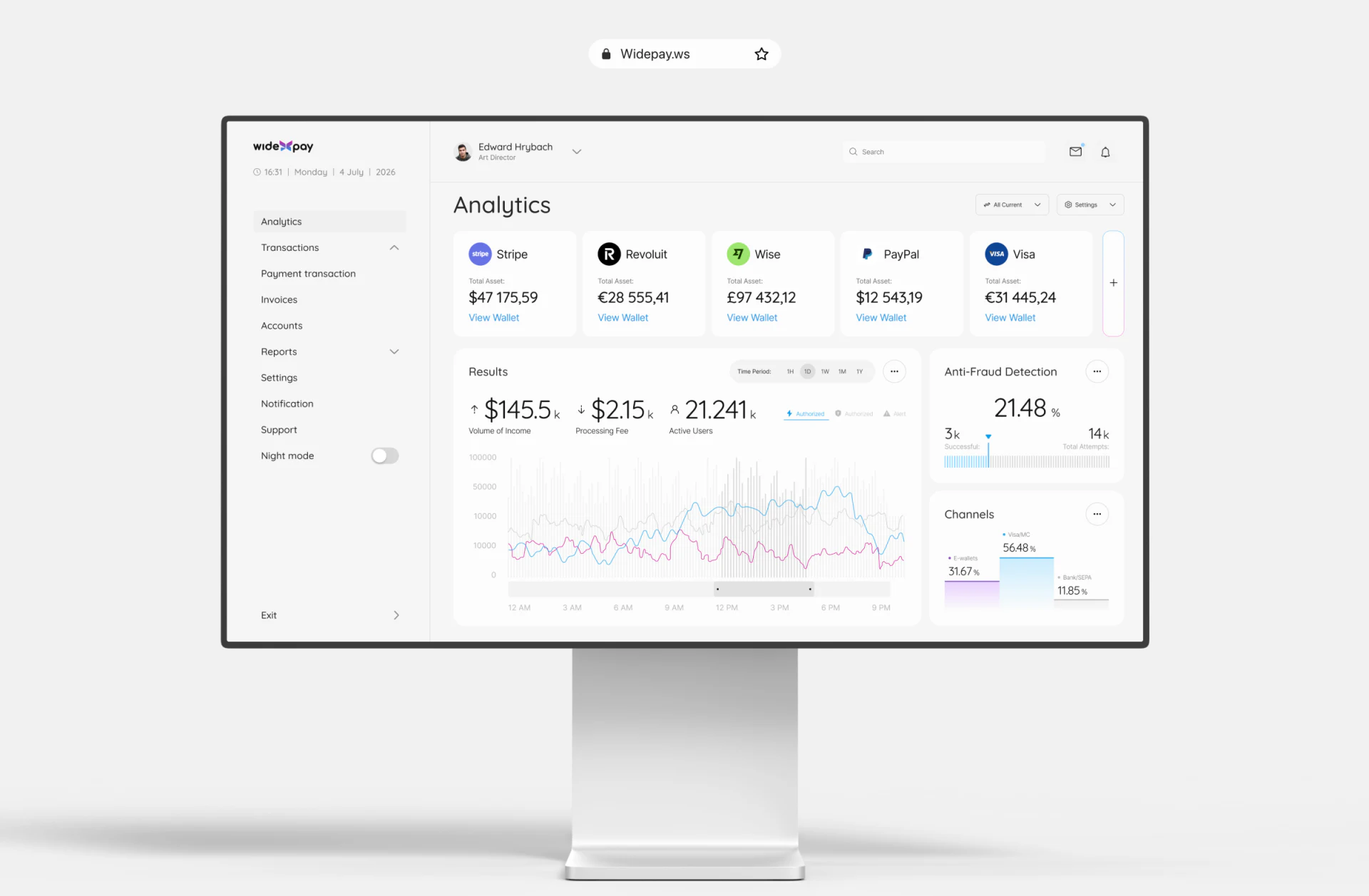
1. Link the Top-Level Overview and Task Queue Without Page Navigation
Many traditional ERP and finance back offices put the account balance overview in one menu and items awaiting the user's approval in another. Before clicking “Approve Payment,” finance managers have to switch back and forth between two pages to check whether the relevant currency account has sufficient available funds.
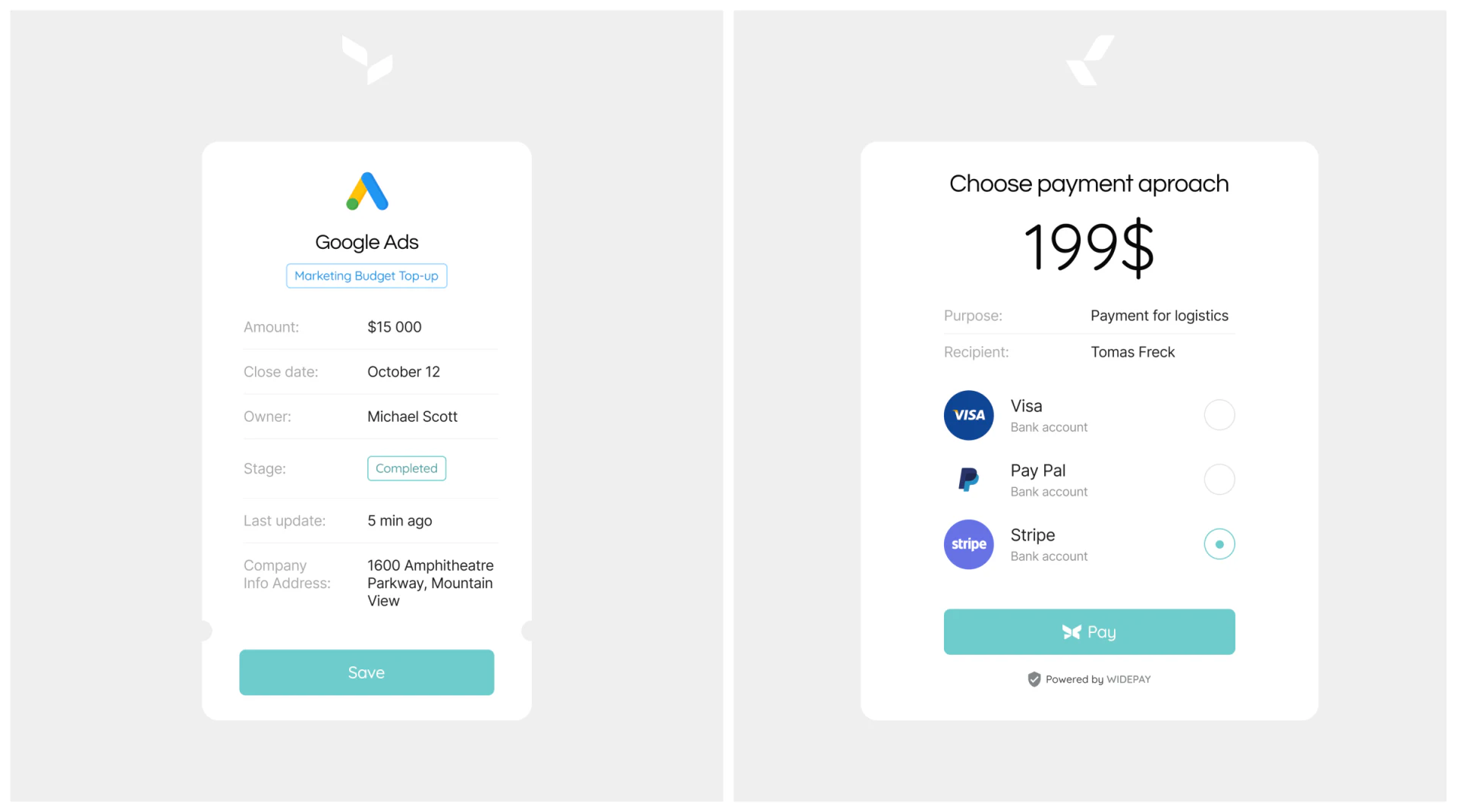
- A compact liquidity bar at the top: Keep a multi-account status bar no more than 80px high permanently visible at the top of the approval workspace. It should display available balances, the total amount due to leave accounts today, and the expected remaining balance after approval in real time.
- Preset status filter pills: Directly above the transaction table, provide one-click filter tabs such as
Awaiting My Approval (12),Large-Payment Alerts (3), andFailed Payments to Retry (2). Clicking one immediately refreshes the table below.
2. Use a Right-Hand Slide-Over Detail Drawer for Consecutive Approvals
When reviewing an individual payment, an approver needs to check invoice attachments, the contract number, the recipient's bank account change history, and request notes from the business department. If opening every transaction navigates to a new page and requires returning to the list after review, loading is slow and users lose their previous position in the table.
- Preserve the table's context: Clicking any transaction row opens a detail drawer from the right that occupies 40%–45% of the screen width. The table on the left automatically highlights the selected row.
- Support keyboard shortcuts and moving directly to the next item: Fix “Approve and View Next” and “Reject (Reason Required)” buttons at the bottom of the drawer, allowing finance staff to process the entire task queue in one continuous flow without repeatedly opening and closing the drawer.